> ## Documentation Index
> Fetch the complete documentation index at: https://modelcontextprotocol.io/llms.txt
> Use this file to discover all available pages before exploring further.
# Recipes
> Practical guides for transports, importing configs, reviewing MCP Apps, Docker, and network hosting
## Connecting stdio vs. HTTP servers
### stdio
A stdio server is a process the Inspector spawns. Everything positional is the command line:
```bash theme={null}
mcp-inspector node build/index.js -- --verbose --config /etc/myserver.conf
```
Put `--` before any arguments meant for your server. Without the separator, `--verbose` would be
parsed by the Inspector and never reach the server.
Give the process environment variables with `-e` and a working directory with `--cwd`:
```bash theme={null}
mcp-inspector -e API_KEY=abc123 -e REGION=us-east-1 --cwd ~/projects/my-server \
node build/index.js
```
The server's `stderr` lands in the **Console** tab (web) or the Console tab (`o`, TUI), which is where most stdio servers put their diagnostics, so check there first when a connection fails for no visible reason.
### HTTP and SSE
```bash theme={null}
mcp-inspector --server-url https://api.example.com/mcp --transport http \
--header "X-Tenant: acme"
```
`--transport` accepts `http` (Streamable HTTP) and `sse`. If the server is protected, see [Authorization](/docs/2026-07-28/tools/inspector/authorization): no setup is needed in advance, because when the server answers `401` the Inspector runs the OAuth flow described there and retries the connection.
For an HTTP server, also decide its [protocol era](/docs/2026-07-28/tools/inspector/protocol-eras). The default is `legacy`; set `modern` or `auto` in Server Settings (or `protocolEra` in the catalog file) to exercise the 2026-07-28 behavior.
## Importing an existing client config
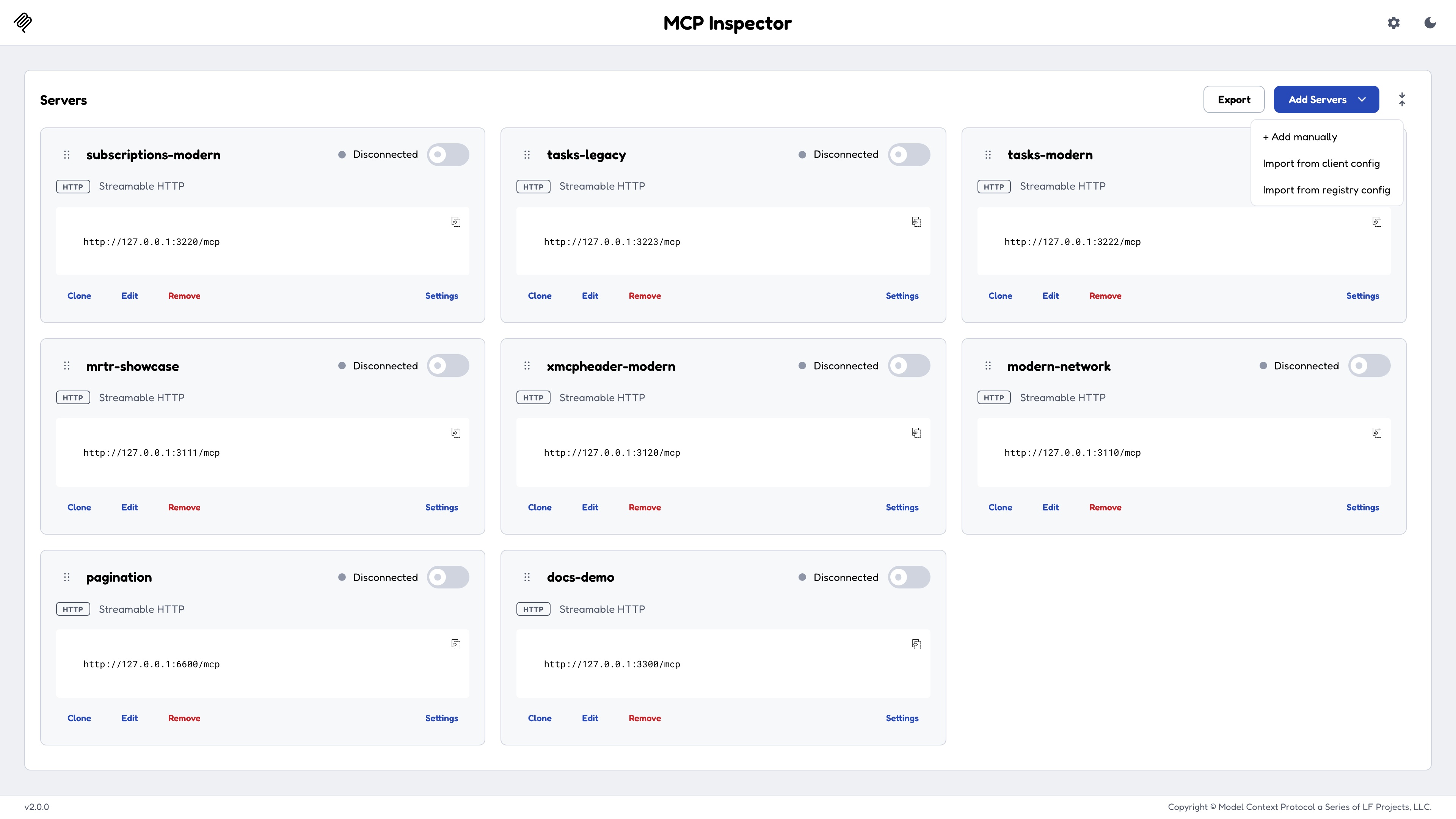
On the Servers screen, **Add Servers** can import MCP servers you have already configured
elsewhere instead of retyping them. It parses Claude Desktop, Cursor, Cline, and VS Code client
configs directly, and it also reads a server's own [MCP Registry](/registry/about) `server.json`.
Import merges into the active [catalog](/docs/2026-07-28/tools/inspector/configuration#choosing-servers)
(the Inspector's writable server list), so existing entries aren't clobbered. If you'd rather
not touch your catalog at all, launch against the foreign file read-only instead:
```bash theme={null}
mcp-inspector --config ~/Library/Application\ Support/Claude/claude_desktop_config.json
```
`--config` guarantees the file is served as-is and never written, seeded, or migrated.
 ## Reviewing an MCP App
[MCP Apps](/extensions/apps/overview) are tools that carry a UI widget. For an automated reviewer (CI or an agent), use the CLI for every check that returns JSON, and open a browser only to inspect the rendered widget.
```bash theme={null}
mcp-inspector --cli --transport http --server-url https://example.com/mcp \
--method tools/call --tool-name --app-info
```
One JSON line on stdout; exit `0` if the tool has an app, `2` if not, so an `&&` chain short-circuits:
```json theme={null}
{
"hasApp": true,
"toolName": "get_pros",
"resourceUri": "ui://pros/view.html",
"csp": { "connectDomains": ["https://api.example.com"] },
"permissions": { "clipboard": false },
"prefersBorder": true,
"resourceMimeType": "text/html"
}
```
`csp` and `permissions` (and `domain`, when the resource declares one) live on the UI **resource** rather than the tool, so `--app-info` reads that resource. The tool is never called.
```bash theme={null}
mcp-inspector --cli --transport http --server-url https://example.com/mcp \
--method tools/call --tool-name --tool-args-json '{"zip":"10001"}' --format json
```
```bash theme={null}
TOKEN="$(openssl rand -hex 24)"
HOST=127.0.0.1 CLIENT_PORT=6274 MCP_SANDBOX_PORT=6275 \
MCP_AUTO_OPEN_ENABLED=false MCP_INSPECTOR_API_TOKEN="$TOKEN" \
mcp-inspector --web &
```
Pinning `MCP_SANDBOX_PORT` matters here: the app's UI is served from a separate sandbox port that is dynamic by default, and your automation needs a fixed address to reach it.
```
http://127.0.0.1:6274/?serverUrl=&transport=http&autoConnect=&openApp=&appArgs=&autoOpen=
```
`appArgs` is the tool's arguments as base64url-encoded JSON, and every deep-link parameter is described under [Deep links](/docs/2026-07-28/tools/inspector/web#deep-links). `autoConnect` and `autoOpen` must both equal the session token, since `autoOpen` fires a tool call straight from the URL and needs the same gate as `autoConnect`.
The Apps screen exposes a stable automation contract. Poll these attributes instead of sleeping:
| Selector | Attribute | Values |
| ----------------------------------- | ----------------- | ------------------------------------------------------------------------------------------------------- |
| `[data-testid="apps-form"]` | `data-app-status` | `ready` (on failure, `data-app-error` carries the reason) |
| `[data-testid="connection-status"]` | `data-status` | `connecting`, then `connected` or `error` (`data-error-message` has the detail) |
| `[data-testid="connection-status"]` | `data-deeplink` | `parsed`, `rejected`, or `none` (`none` means no deep link was given, `rejected` means one was refused) |
## Docker
A container image is published to GitHub Container Registry for `linux/amd64` and `linux/arm64`:
```bash theme={null}
docker run --rm -p 6274:6274 ghcr.io/modelcontextprotocol/inspector
```
Read the [session token](/docs/2026-07-28/tools/inspector/web#the-session-token) from the container logs, or pin it with `-e MCP_INSPECTOR_API_TOKEN=`.
The image defaults to `--web`, bound to `0.0.0.0:6274` with browser auto-open off, and runs as a non-root user. It sets `DANGEROUSLY_BIND_ALL_INTERFACES=true` because a container must bind the wildcard address to be reachable through `-p`.
Its `HEALTHCHECK` probes the web UI, so add `--no-healthcheck` when running `--cli` or `--tui` (neither has a web server). `` below is an [ad-hoc target](/docs/2026-07-28/tools/inspector/configuration#ad-hoc-targets): a positional stdio command, or `--server-url --transport http`.
```bash theme={null}
docker run --rm --no-healthcheck ghcr.io/modelcontextprotocol/inspector --cli --method tools/list
```
**If you remap the published port, set `ALLOWED_ORIGINS`.** With `-p
8080:6274` the browser's origin becomes `http://localhost:8080`, which no
longer matches the in-container port, and connects will `403`. Either run `-e
CLIENT_PORT=8080 -p 8080:8080`, or set `-e
ALLOWED_ORIGINS=http://localhost:8080,http://127.0.0.1:8080`.
## Hosting on a network
The Inspector binds `localhost` by default and its backend spawns processes, so treat exposing it to a network as a deliberate decision.
The Inspector refuses to bind the **wildcard** all-interfaces addresses (`0.0.0.0`, `::`, and every equivalent spelling) unless you set `DANGEROUSLY_BIND_ALL_INTERFACES=true`. Binding a **specific** address is allowed with no opt-in, because that's one deliberate exposure rather than every interface at once, which is the shape DNS-rebinding attacks target.
| Goal | What to do |
| -------------------------------------------- | ------------------------------------------------------------------------------------------------------------------------------------------------------ |
| **Reach it from another machine on the LAN** | `HOST=192.168.1.50`. The default origin allow-list follows the bind host, so `http://192.168.1.50:6274` is accepted with no further config. |
| **Behind TLS or a reverse proxy** | The browser's `Origin` becomes the public origin, which won't match the bind host. Set `ALLOWED_ORIGINS=https://inspector.example.com`. |
| **Wildcard bind (containers)** | Set `DANGEROUSLY_BIND_ALL_INTERFACES=true`. Loopback access still works out of the box; reaching it at a non-loopback address needs `ALLOWED_ORIGINS`. |
`ALLOWED_ORIGINS` **replaces** the default list rather than merging with it. List every origin you'll browse from, including the loopback forms you want to keep:
```
ALLOWED_ORIGINS=http://localhost:6274,http://127.0.0.1:6274,http://192.168.1.50:6274
```
Each entry must include the scheme; a scheme-less value is dropped with a warning. A blank value does **not** disable the check; it falls back to the default. There is no knob to turn origin validation off.
Two further caveats when going off loopback:
* **MCP Apps need their sandbox port reachable too.** It's a separate, dynamic-by-default port; pin it with `MCP_SANDBOX_PORT` and expose or forward it. The Docker image publishes only `6274`.
* **MCP Apps can't render over TLS or at a bare IPv6 literal.** The sandbox URL is always plain `http`, so an `https://` page blocks the iframe as mixed content; and a bracketed IPv6 literal isn't a valid CSP host-source, so browse at a name or an IPv4 address.
Whatever the shape: keep authentication on. Do not set `DANGEROUSLY_OMIT_AUTH` on anything reachable by anyone but you.
## Development workflow
A loop that works well in practice:
`--method initialize` confirms the server starts, handshakes, and reports
the capabilities you expect, in one second, with a machine-readable answer.
Most "it doesn't work" turns out to be here.
Schema-driven forms, rendered results, and the Protocol tab beside them make
it fast to find the case where a tool misbehaves.
Invalid inputs, missing required prompt arguments, concurrent calls, and,
for HTTP servers, both protocol eras. Verify the *errors* are as intentional
as the successes.
Turn what you found into a CI assertion: pipe the CLI's `--format json`
output to `jq -e` with `--stored-auth-only`, so a missing token fails fast
instead of starting interactive OAuth. See [Verify a server in
CI](/docs/2026-07-28/tools/inspector/cli#verify-a-server-in-ci) for the full
command.
## Reviewing an MCP App
[MCP Apps](/extensions/apps/overview) are tools that carry a UI widget. For an automated reviewer (CI or an agent), use the CLI for every check that returns JSON, and open a browser only to inspect the rendered widget.
```bash theme={null}
mcp-inspector --cli --transport http --server-url https://example.com/mcp \
--method tools/call --tool-name --app-info
```
One JSON line on stdout; exit `0` if the tool has an app, `2` if not, so an `&&` chain short-circuits:
```json theme={null}
{
"hasApp": true,
"toolName": "get_pros",
"resourceUri": "ui://pros/view.html",
"csp": { "connectDomains": ["https://api.example.com"] },
"permissions": { "clipboard": false },
"prefersBorder": true,
"resourceMimeType": "text/html"
}
```
`csp` and `permissions` (and `domain`, when the resource declares one) live on the UI **resource** rather than the tool, so `--app-info` reads that resource. The tool is never called.
```bash theme={null}
mcp-inspector --cli --transport http --server-url https://example.com/mcp \
--method tools/call --tool-name --tool-args-json '{"zip":"10001"}' --format json
```
```bash theme={null}
TOKEN="$(openssl rand -hex 24)"
HOST=127.0.0.1 CLIENT_PORT=6274 MCP_SANDBOX_PORT=6275 \
MCP_AUTO_OPEN_ENABLED=false MCP_INSPECTOR_API_TOKEN="$TOKEN" \
mcp-inspector --web &
```
Pinning `MCP_SANDBOX_PORT` matters here: the app's UI is served from a separate sandbox port that is dynamic by default, and your automation needs a fixed address to reach it.
```
http://127.0.0.1:6274/?serverUrl=&transport=http&autoConnect=&openApp=&appArgs=&autoOpen=
```
`appArgs` is the tool's arguments as base64url-encoded JSON, and every deep-link parameter is described under [Deep links](/docs/2026-07-28/tools/inspector/web#deep-links). `autoConnect` and `autoOpen` must both equal the session token, since `autoOpen` fires a tool call straight from the URL and needs the same gate as `autoConnect`.
The Apps screen exposes a stable automation contract. Poll these attributes instead of sleeping:
| Selector | Attribute | Values |
| ----------------------------------- | ----------------- | ------------------------------------------------------------------------------------------------------- |
| `[data-testid="apps-form"]` | `data-app-status` | `ready` (on failure, `data-app-error` carries the reason) |
| `[data-testid="connection-status"]` | `data-status` | `connecting`, then `connected` or `error` (`data-error-message` has the detail) |
| `[data-testid="connection-status"]` | `data-deeplink` | `parsed`, `rejected`, or `none` (`none` means no deep link was given, `rejected` means one was refused) |
## Docker
A container image is published to GitHub Container Registry for `linux/amd64` and `linux/arm64`:
```bash theme={null}
docker run --rm -p 6274:6274 ghcr.io/modelcontextprotocol/inspector
```
Read the [session token](/docs/2026-07-28/tools/inspector/web#the-session-token) from the container logs, or pin it with `-e MCP_INSPECTOR_API_TOKEN=`.
The image defaults to `--web`, bound to `0.0.0.0:6274` with browser auto-open off, and runs as a non-root user. It sets `DANGEROUSLY_BIND_ALL_INTERFACES=true` because a container must bind the wildcard address to be reachable through `-p`.
Its `HEALTHCHECK` probes the web UI, so add `--no-healthcheck` when running `--cli` or `--tui` (neither has a web server). `` below is an [ad-hoc target](/docs/2026-07-28/tools/inspector/configuration#ad-hoc-targets): a positional stdio command, or `--server-url --transport http`.
```bash theme={null}
docker run --rm --no-healthcheck ghcr.io/modelcontextprotocol/inspector --cli --method tools/list
```
**If you remap the published port, set `ALLOWED_ORIGINS`.** With `-p
8080:6274` the browser's origin becomes `http://localhost:8080`, which no
longer matches the in-container port, and connects will `403`. Either run `-e
CLIENT_PORT=8080 -p 8080:8080`, or set `-e
ALLOWED_ORIGINS=http://localhost:8080,http://127.0.0.1:8080`.
## Hosting on a network
The Inspector binds `localhost` by default and its backend spawns processes, so treat exposing it to a network as a deliberate decision.
The Inspector refuses to bind the **wildcard** all-interfaces addresses (`0.0.0.0`, `::`, and every equivalent spelling) unless you set `DANGEROUSLY_BIND_ALL_INTERFACES=true`. Binding a **specific** address is allowed with no opt-in, because that's one deliberate exposure rather than every interface at once, which is the shape DNS-rebinding attacks target.
| Goal | What to do |
| -------------------------------------------- | ------------------------------------------------------------------------------------------------------------------------------------------------------ |
| **Reach it from another machine on the LAN** | `HOST=192.168.1.50`. The default origin allow-list follows the bind host, so `http://192.168.1.50:6274` is accepted with no further config. |
| **Behind TLS or a reverse proxy** | The browser's `Origin` becomes the public origin, which won't match the bind host. Set `ALLOWED_ORIGINS=https://inspector.example.com`. |
| **Wildcard bind (containers)** | Set `DANGEROUSLY_BIND_ALL_INTERFACES=true`. Loopback access still works out of the box; reaching it at a non-loopback address needs `ALLOWED_ORIGINS`. |
`ALLOWED_ORIGINS` **replaces** the default list rather than merging with it. List every origin you'll browse from, including the loopback forms you want to keep:
```
ALLOWED_ORIGINS=http://localhost:6274,http://127.0.0.1:6274,http://192.168.1.50:6274
```
Each entry must include the scheme; a scheme-less value is dropped with a warning. A blank value does **not** disable the check; it falls back to the default. There is no knob to turn origin validation off.
Two further caveats when going off loopback:
* **MCP Apps need their sandbox port reachable too.** It's a separate, dynamic-by-default port; pin it with `MCP_SANDBOX_PORT` and expose or forward it. The Docker image publishes only `6274`.
* **MCP Apps can't render over TLS or at a bare IPv6 literal.** The sandbox URL is always plain `http`, so an `https://` page blocks the iframe as mixed content; and a bracketed IPv6 literal isn't a valid CSP host-source, so browse at a name or an IPv4 address.
Whatever the shape: keep authentication on. Do not set `DANGEROUSLY_OMIT_AUTH` on anything reachable by anyone but you.
## Development workflow
A loop that works well in practice:
`--method initialize` confirms the server starts, handshakes, and reports
the capabilities you expect, in one second, with a machine-readable answer.
Most "it doesn't work" turns out to be here.
Schema-driven forms, rendered results, and the Protocol tab beside them make
it fast to find the case where a tool misbehaves.
Invalid inputs, missing required prompt arguments, concurrent calls, and,
for HTTP servers, both protocol eras. Verify the *errors* are as intentional
as the successes.
Turn what you found into a CI assertion: pipe the CLI's `--format json`
output to `jq -e` with `--stored-auth-only`, so a missing token fails fast
instead of starting interactive OAuth. See [Verify a server in
CI](/docs/2026-07-28/tools/inspector/cli#verify-a-server-in-ci) for the full
command.