> ## Documentation Index
> Fetch the complete documentation index at: https://modelcontextprotocol.io/llms.txt
> Use this file to discover all available pages before exploring further.
# Connect to local MCP servers
> Learn how to extend Claude Desktop with local MCP servers to enable file system access and other powerful integrations
Model Context Protocol (MCP) servers extend AI applications' capabilities by providing secure, controlled access to local resources and tools. Many clients support MCP, enabling diverse integration possibilities across different platforms and applications.
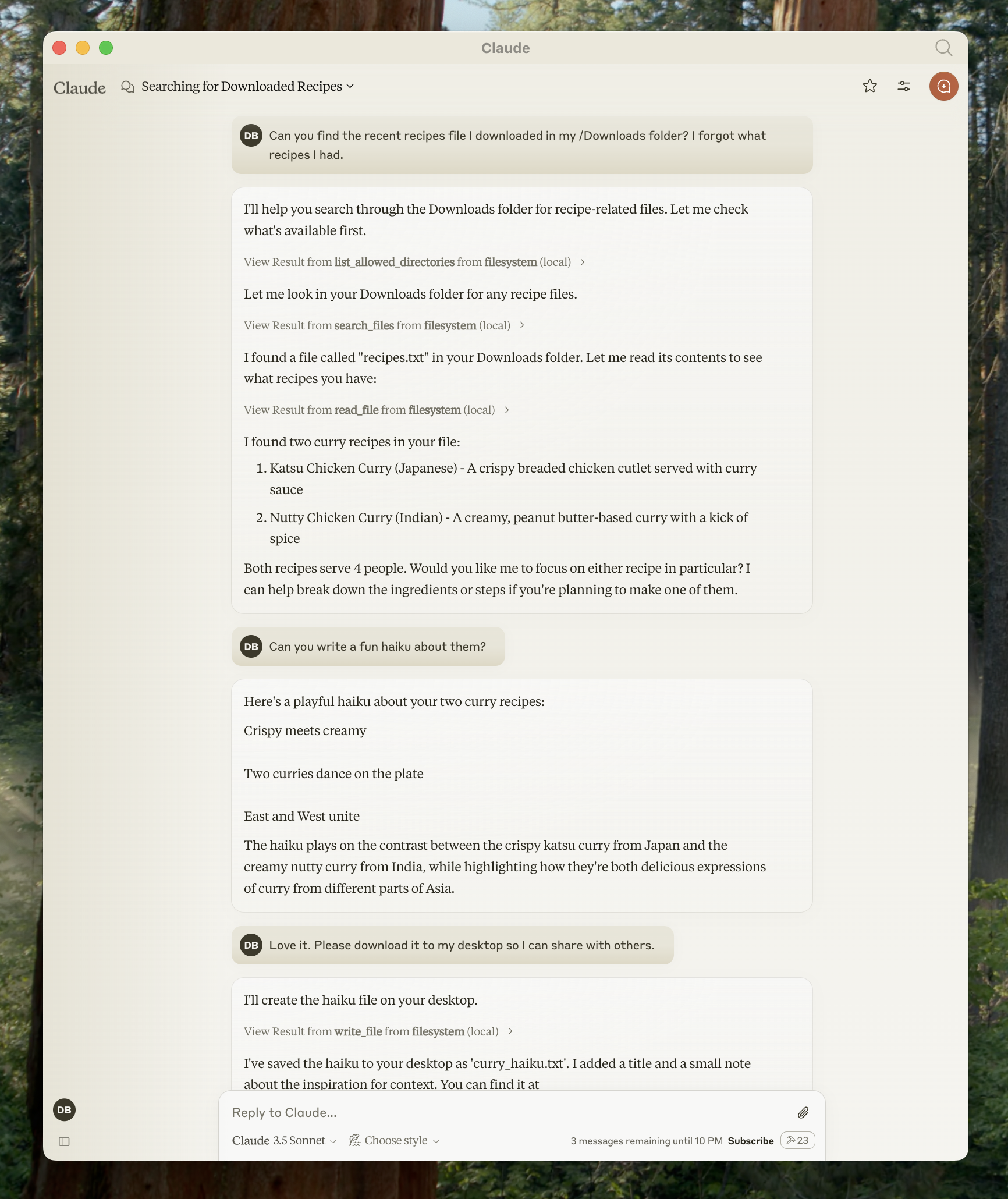
This guide demonstrates how to connect to local MCP servers using Claude Desktop as an example, one of the [many clients that support MCP](/clients). While we focus on Claude Desktop's implementation, the concepts apply broadly to other MCP-compatible clients. By the end of this tutorial, Claude will be able to interact with files on your computer, create new documents, organize folders, and search through your file system—all with your explicit permission for each action.
 ## Prerequisites
Before starting this tutorial, ensure you have the following installed on your system:
### Claude Desktop
Download and install [Claude Desktop](https://claude.ai/download) for your operating system. Claude Desktop is available for macOS and Windows.
If you already have Claude Desktop installed, verify you're running the latest version by clicking the Claude menu and selecting "Check for Updates..."
### Node.js
The Filesystem Server and many other MCP servers require Node.js to run. Verify your Node.js installation by opening a terminal or command prompt and running:
```bash theme={null}
node --version
```
If Node.js is not installed, download it from [nodejs.org](https://nodejs.org/). We recommend the LTS (Long Term Support) version for stability.
## Understanding MCP Servers
MCP servers are programs that run on your computer and provide specific capabilities to Claude Desktop through a standardized protocol. Each server exposes tools that Claude can use to perform actions, with your approval. The Filesystem Server we'll install provides tools for:
* Reading file contents and directory structures
* Creating new files and directories
* Moving and renaming files
* Searching for files by name or content
All actions require your explicit approval before execution, ensuring you maintain full control over what Claude can access and modify.
## Installing the Filesystem Server
The process involves configuring Claude Desktop to automatically start the Filesystem Server whenever you launch the application. This configuration is done through a JSON file that tells Claude Desktop which servers to run and how to connect to them.
Start by accessing the Claude Desktop settings. Click on the Claude menu in your system's menu bar (not the settings within the Claude window itself) and select "Settings..."
On macOS, this appears in the top menu bar:
## Prerequisites
Before starting this tutorial, ensure you have the following installed on your system:
### Claude Desktop
Download and install [Claude Desktop](https://claude.ai/download) for your operating system. Claude Desktop is available for macOS and Windows.
If you already have Claude Desktop installed, verify you're running the latest version by clicking the Claude menu and selecting "Check for Updates..."
### Node.js
The Filesystem Server and many other MCP servers require Node.js to run. Verify your Node.js installation by opening a terminal or command prompt and running:
```bash theme={null}
node --version
```
If Node.js is not installed, download it from [nodejs.org](https://nodejs.org/). We recommend the LTS (Long Term Support) version for stability.
## Understanding MCP Servers
MCP servers are programs that run on your computer and provide specific capabilities to Claude Desktop through a standardized protocol. Each server exposes tools that Claude can use to perform actions, with your approval. The Filesystem Server we'll install provides tools for:
* Reading file contents and directory structures
* Creating new files and directories
* Moving and renaming files
* Searching for files by name or content
All actions require your explicit approval before execution, ensuring you maintain full control over what Claude can access and modify.
## Installing the Filesystem Server
The process involves configuring Claude Desktop to automatically start the Filesystem Server whenever you launch the application. This configuration is done through a JSON file that tells Claude Desktop which servers to run and how to connect to them.
Start by accessing the Claude Desktop settings. Click on the Claude menu in your system's menu bar (not the settings within the Claude window itself) and select "Settings..."
On macOS, this appears in the top menu bar:
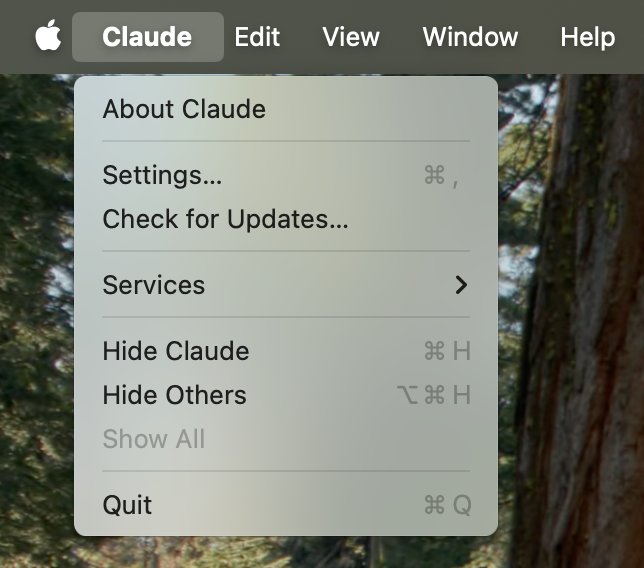 This opens the Claude Desktop configuration window, which is separate from your Claude account settings.
In the Settings window, navigate to the "Developer" tab in the left sidebar. This section contains options for configuring MCP servers and other developer features.
Click the "Edit Config" button to open the configuration file:
This opens the Claude Desktop configuration window, which is separate from your Claude account settings.
In the Settings window, navigate to the "Developer" tab in the left sidebar. This section contains options for configuring MCP servers and other developer features.
Click the "Edit Config" button to open the configuration file:
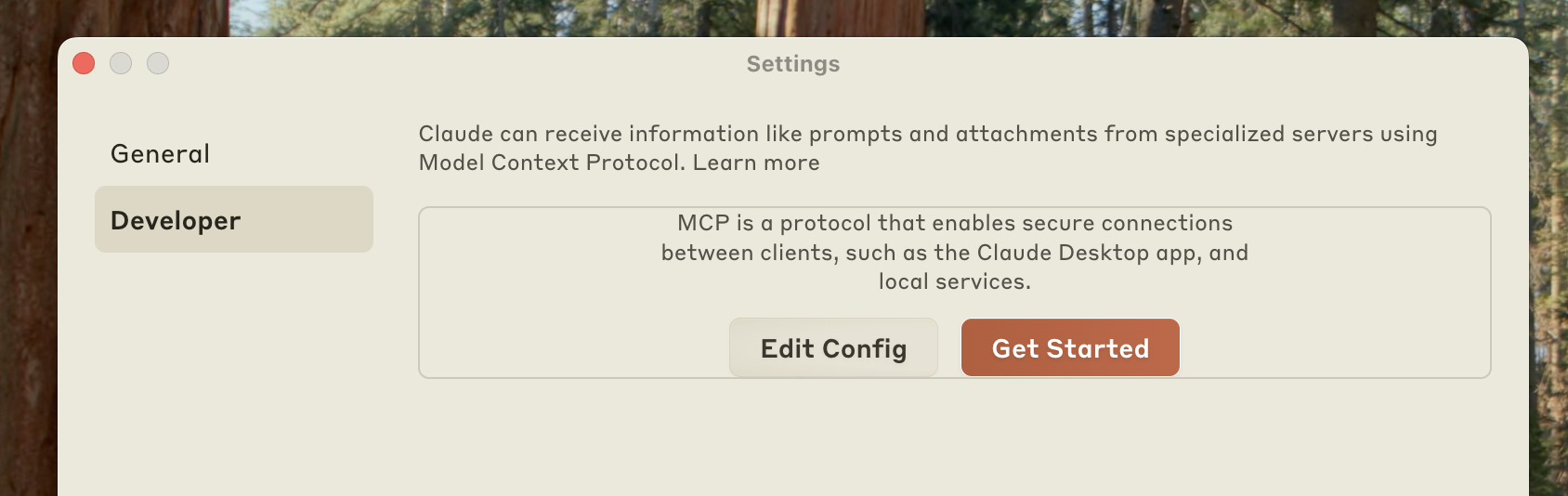 This action creates a new configuration file if one doesn't exist, or opens your existing configuration. The file is located at:
* **macOS**: `~/Library/Application Support/Claude/claude_desktop_config.json`
* **Windows**: `%APPDATA%\Claude\claude_desktop_config.json`
Replace the contents of the configuration file with the following JSON structure. This configuration tells Claude Desktop to start the Filesystem Server with access to specific directories:
```json macOS theme={null}
{
"mcpServers": {
"filesystem": {
"command": "npx",
"args": [
"-y",
"@modelcontextprotocol/server-filesystem",
"/Users/username/Desktop",
"/Users/username/Downloads"
]
}
}
}
```
```json Windows theme={null}
{
"mcpServers": {
"filesystem": {
"command": "npx",
"args": [
"-y",
"@modelcontextprotocol/server-filesystem",
"C:\\Users\\username\\Desktop",
"C:\\Users\\username\\Downloads"
]
}
}
}
```
Replace `username` with your actual computer username. The paths listed in the `args` array specify which directories the Filesystem Server can access. You can modify these paths or add additional directories as needed.
**Understanding the Configuration**
* `"filesystem"`: A friendly name for the server that appears in Claude Desktop
* `"command": "npx"`: Uses Node.js's npx tool to run the server
* `"-y"`: Automatically confirms the installation of the server package
* `"@modelcontextprotocol/server-filesystem"`: The package name of the Filesystem Server
* The remaining arguments: Directories the server is allowed to access
**Security Consideration**
Only grant access to directories you're comfortable with Claude reading and modifying. The server runs with your user account permissions, so it can perform any file operations you can perform manually.
After saving the configuration file, completely quit Claude Desktop and restart it. The application needs to restart to load the new configuration and start the MCP server.
Upon successful restart, you'll see an MCP server indicator
This action creates a new configuration file if one doesn't exist, or opens your existing configuration. The file is located at:
* **macOS**: `~/Library/Application Support/Claude/claude_desktop_config.json`
* **Windows**: `%APPDATA%\Claude\claude_desktop_config.json`
Replace the contents of the configuration file with the following JSON structure. This configuration tells Claude Desktop to start the Filesystem Server with access to specific directories:
```json macOS theme={null}
{
"mcpServers": {
"filesystem": {
"command": "npx",
"args": [
"-y",
"@modelcontextprotocol/server-filesystem",
"/Users/username/Desktop",
"/Users/username/Downloads"
]
}
}
}
```
```json Windows theme={null}
{
"mcpServers": {
"filesystem": {
"command": "npx",
"args": [
"-y",
"@modelcontextprotocol/server-filesystem",
"C:\\Users\\username\\Desktop",
"C:\\Users\\username\\Downloads"
]
}
}
}
```
Replace `username` with your actual computer username. The paths listed in the `args` array specify which directories the Filesystem Server can access. You can modify these paths or add additional directories as needed.
**Understanding the Configuration**
* `"filesystem"`: A friendly name for the server that appears in Claude Desktop
* `"command": "npx"`: Uses Node.js's npx tool to run the server
* `"-y"`: Automatically confirms the installation of the server package
* `"@modelcontextprotocol/server-filesystem"`: The package name of the Filesystem Server
* The remaining arguments: Directories the server is allowed to access
**Security Consideration**
Only grant access to directories you're comfortable with Claude reading and modifying. The server runs with your user account permissions, so it can perform any file operations you can perform manually.
After saving the configuration file, completely quit Claude Desktop and restart it. The application needs to restart to load the new configuration and start the MCP server.
Upon successful restart, you'll see an MCP server indicator  in the bottom-right corner of the conversation input box:
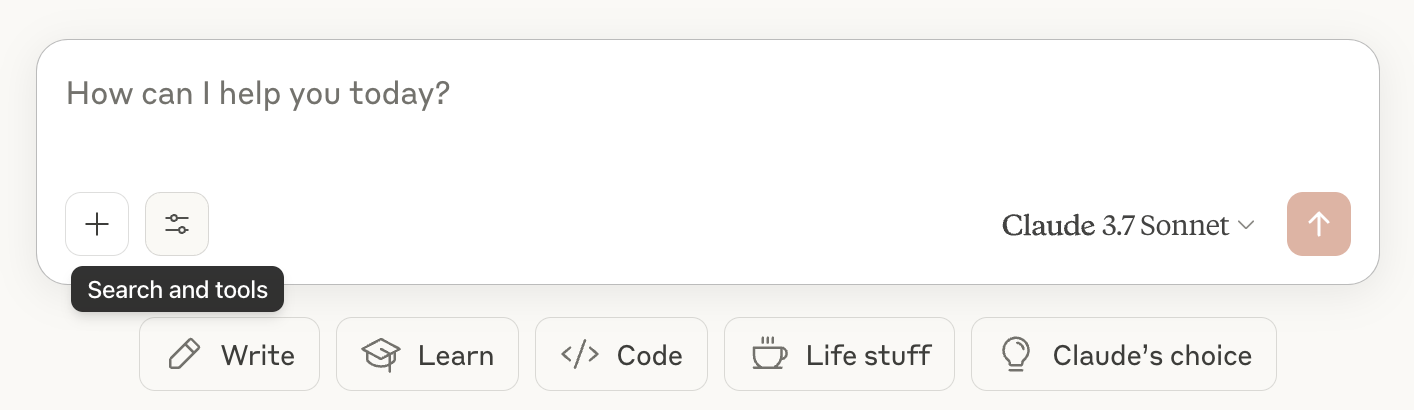 Click on this indicator to view the available tools provided by the Filesystem Server:
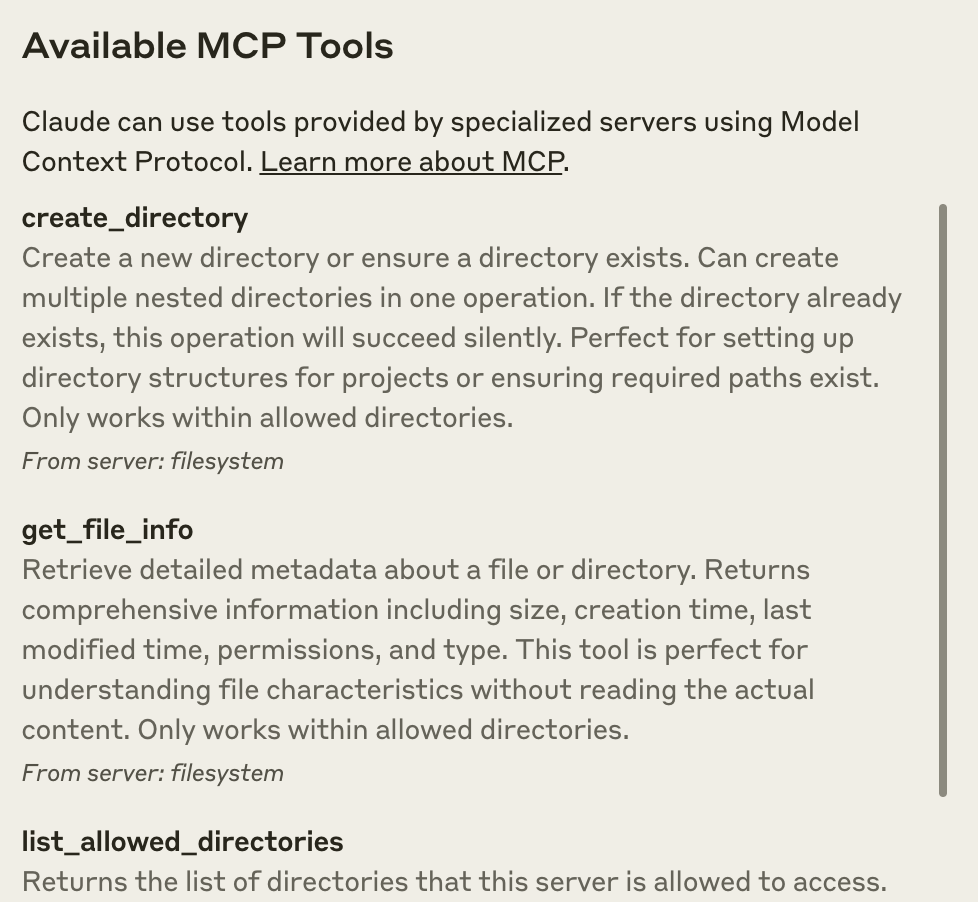 If the server indicator doesn't appear, refer to the [Troubleshooting](#troubleshooting) section for debugging steps.
## Using the Filesystem Server
With the Filesystem Server connected, Claude can now interact with your file system. Try these example requests to explore the capabilities:
### File Management Examples
* **"Can you write a poem and save it to my desktop?"** - Claude will compose a poem and create a new text file on your desktop
* **"What work-related files are in my downloads folder?"** - Claude will scan your downloads and identify work-related documents
* **"Please organize all images on my desktop into a new folder called 'Images'"** - Claude will create a folder and move image files into it
### How Approval Works
Before executing any file system operation, Claude will request your approval. This ensures you maintain control over all actions:
If the server indicator doesn't appear, refer to the [Troubleshooting](#troubleshooting) section for debugging steps.
## Using the Filesystem Server
With the Filesystem Server connected, Claude can now interact with your file system. Try these example requests to explore the capabilities:
### File Management Examples
* **"Can you write a poem and save it to my desktop?"** - Claude will compose a poem and create a new text file on your desktop
* **"What work-related files are in my downloads folder?"** - Claude will scan your downloads and identify work-related documents
* **"Please organize all images on my desktop into a new folder called 'Images'"** - Claude will create a folder and move image files into it
### How Approval Works
Before executing any file system operation, Claude will request your approval. This ensures you maintain control over all actions:
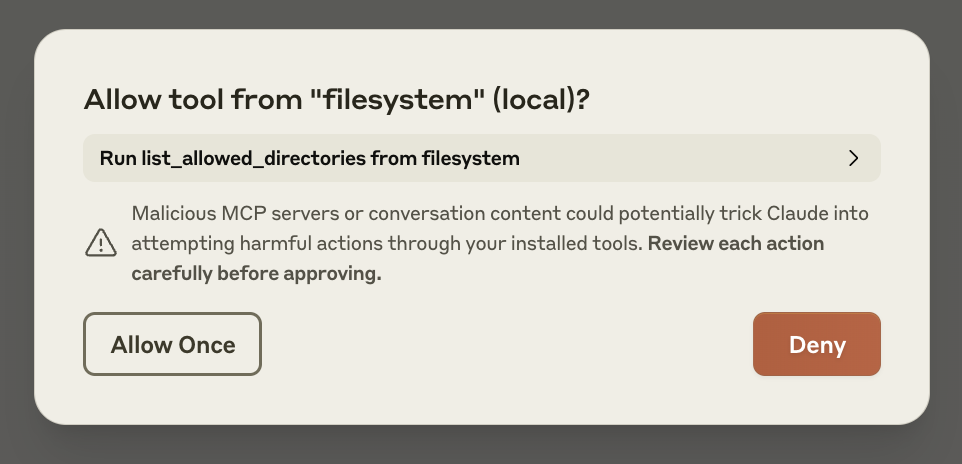 Review each request carefully before approving. You can always deny a request if you're not comfortable with the proposed action.
## Troubleshooting
If you encounter issues setting up or using the Filesystem Server, these solutions address common problems:
1. Restart Claude Desktop completely
2. Check your `claude_desktop_config.json` file syntax
3. Make sure the file paths included in `claude_desktop_config.json` are valid and that they are absolute and not relative
4. Look at [logs](#getting-logs-from-claude-for-desktop) to see why the server is not connecting
5. In your command line, try manually running the server (replacing `username` as you did in `claude_desktop_config.json`) to see if you get any errors:
```bash macOS/Linux theme={null}
npx -y @modelcontextprotocol/server-filesystem /Users/username/Desktop /Users/username/Downloads
```
```powershell Windows theme={null}
npx -y @modelcontextprotocol/server-filesystem C:\Users\username\Desktop C:\Users\username\Downloads
```
Claude.app logging related to MCP is written to log files in:
* macOS: `~/Library/Logs/Claude`
* Windows: `%APPDATA%\Claude\logs`
* `mcp.log` will contain general logging about MCP connections and connection failures.
* Files named `mcp-server-SERVERNAME.log` will contain error (stderr) logging from the named server.
You can run the following command to list recent logs and follow along with any new ones (on Windows, it will only show recent logs):
```bash macOS/Linux theme={null}
tail -n 20 -f ~/Library/Logs/Claude/mcp*.log
```
```powershell Windows theme={null}
type "%APPDATA%\Claude\logs\mcp*.log"
```
If Claude attempts to use the tools but they fail:
1. Check Claude's logs for errors
2. Verify your server builds and runs without errors
3. Try restarting Claude Desktop
Please refer to our [debugging guide](/legacy/tools/debugging) for better debugging tools and more detailed guidance.
If your configured server fails to load, and you see within its logs an error referring to `${APPDATA}` within a path, you may need to add the expanded value of `%APPDATA%` to your `env` key in `claude_desktop_config.json`:
```json theme={null}
{
"brave-search": {
"command": "npx",
"args": ["-y", "@modelcontextprotocol/server-brave-search"],
"env": {
"APPDATA": "C:\\Users\\user\\AppData\\Roaming\\",
"BRAVE_API_KEY": "..."
}
}
}
```
With this change in place, launch Claude Desktop once again.
**npm should be installed globally**
The `npx` command may continue to fail if you have not installed npm globally. If npm is already installed globally, you will find `%APPDATA%\npm` exists on your system. If not, you can install npm globally by running the following command:
```bash theme={null}
npm install -g npm
```
## Next Steps
Now that you've successfully connected Claude Desktop to a local MCP server, explore these options to expand your setup:
Browse our collection of official and community-created MCP servers for
additional capabilities
Create custom MCP servers tailored to your specific workflows and
integrations
Learn how to connect Claude to remote MCP servers for cloud-based tools and
services
Dive deeper into how MCP works and its architecture
Review each request carefully before approving. You can always deny a request if you're not comfortable with the proposed action.
## Troubleshooting
If you encounter issues setting up or using the Filesystem Server, these solutions address common problems:
1. Restart Claude Desktop completely
2. Check your `claude_desktop_config.json` file syntax
3. Make sure the file paths included in `claude_desktop_config.json` are valid and that they are absolute and not relative
4. Look at [logs](#getting-logs-from-claude-for-desktop) to see why the server is not connecting
5. In your command line, try manually running the server (replacing `username` as you did in `claude_desktop_config.json`) to see if you get any errors:
```bash macOS/Linux theme={null}
npx -y @modelcontextprotocol/server-filesystem /Users/username/Desktop /Users/username/Downloads
```
```powershell Windows theme={null}
npx -y @modelcontextprotocol/server-filesystem C:\Users\username\Desktop C:\Users\username\Downloads
```
Claude.app logging related to MCP is written to log files in:
* macOS: `~/Library/Logs/Claude`
* Windows: `%APPDATA%\Claude\logs`
* `mcp.log` will contain general logging about MCP connections and connection failures.
* Files named `mcp-server-SERVERNAME.log` will contain error (stderr) logging from the named server.
You can run the following command to list recent logs and follow along with any new ones (on Windows, it will only show recent logs):
```bash macOS/Linux theme={null}
tail -n 20 -f ~/Library/Logs/Claude/mcp*.log
```
```powershell Windows theme={null}
type "%APPDATA%\Claude\logs\mcp*.log"
```
If Claude attempts to use the tools but they fail:
1. Check Claude's logs for errors
2. Verify your server builds and runs without errors
3. Try restarting Claude Desktop
Please refer to our [debugging guide](/legacy/tools/debugging) for better debugging tools and more detailed guidance.
If your configured server fails to load, and you see within its logs an error referring to `${APPDATA}` within a path, you may need to add the expanded value of `%APPDATA%` to your `env` key in `claude_desktop_config.json`:
```json theme={null}
{
"brave-search": {
"command": "npx",
"args": ["-y", "@modelcontextprotocol/server-brave-search"],
"env": {
"APPDATA": "C:\\Users\\user\\AppData\\Roaming\\",
"BRAVE_API_KEY": "..."
}
}
}
```
With this change in place, launch Claude Desktop once again.
**npm should be installed globally**
The `npx` command may continue to fail if you have not installed npm globally. If npm is already installed globally, you will find `%APPDATA%\npm` exists on your system. If not, you can install npm globally by running the following command:
```bash theme={null}
npm install -g npm
```
## Next Steps
Now that you've successfully connected Claude Desktop to a local MCP server, explore these options to expand your setup:
Browse our collection of official and community-created MCP servers for
additional capabilities
Create custom MCP servers tailored to your specific workflows and
integrations
Learn how to connect Claude to remote MCP servers for cloud-based tools and
services
Dive deeper into how MCP works and its architecture