For comprehensive API documentation, advanced patterns, and the full specification, visit the official MCP Apps documentation.
Text responses can only go so far. Sometimes users need to interact with data, not just read about it. MCP Apps let servers return interactive HTML interfaces (data visualizations, forms, dashboards) that render directly in the chat.

Why not just build a web app?

You could build a standalone web app and send users a link. However, MCP Apps offer these key advantages that a separate page can’t match: Context preservation. The app lives inside the conversation. Users don’t switch tabs, lose their place, or wonder which chat thread had that dashboard. The UI is right there, alongside the discussion that led to it. Bidirectional data flow. Your app can call any tool on the MCP server, and the host can push fresh results to your app. A standalone web app would need its own API, authentication, and state management. MCP Apps get this via existing MCP patterns. Integration with the host’s capabilities. The app can delegate actions to the host, which can then invoke the capabilities and tools the user has already connected (subject to user consent). Instead of every app implementing and maintaining direct integrations (e.g., email providers), the app can request an outcome (like “schedule this meeting”), and the host routes it through the user’s existing connected capabilities. Security guarantees. MCP Apps run in a sandboxed iframe controlled by the host. They can’t access the parent page, steal cookies, or escape their container. This means hosts can safely render third-party apps without trusting the server author completely. If your use case doesn’t benefit from these properties, a regular web app might be simpler. But if you want tight integration with the LLM-based conversation, MCP Apps are a much better tool.

How MCP Apps work

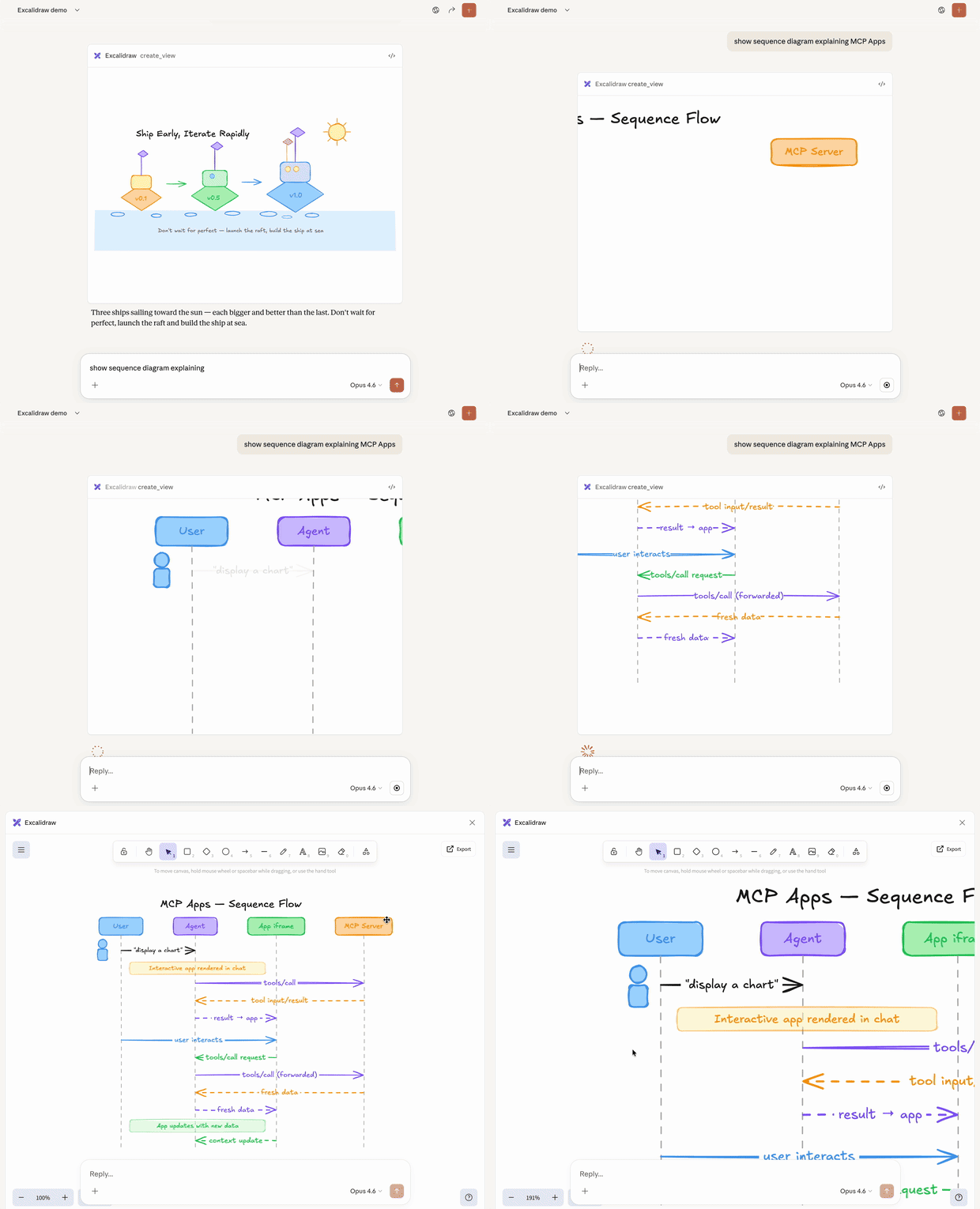
Traditional MCP tools return text, images, resources or structured data that the host displays as part of the conversation. MCP Apps extend this pattern by allowing tools to declare a reference to an interactive UI in their tool description that the host renders in place. The core pattern combines two MCP primitives: a tool that declares a UI resource in its description, plus a UI resource that renders data as an interactive HTML interface. When a large language model (LLM) decides to call a tool that supports MCP Apps, here’s what happens:
  1. UI preloading: The tool description includes a _meta.ui.resourceUri field pointing to a ui:// resource. The host can preload this resource before the tool is even called, enabling features like streaming tool inputs to the app.
  2. Resource fetch: The host fetches the UI resource from the server. This resource contains an HTML page, often bundled with its JavaScript and CSS for simplicity. Apps can also load external scripts and resources from origins specified in _meta.ui.csp.
  3. Sandboxed rendering: Web hosts typically render the HTML inside a sandboxed iframe within the conversation. The sandbox restricts the app’s access to the parent page, ensuring security. The resource’s _meta.ui object can include permissions to request additional capabilities (e.g., microphone, camera) and csp to control what external origins the app can load resources from.
  4. Bidirectional communication: The app and host communicate through a JSON-RPC protocol that forms its own dialect of MCP. Some requests and notifications are shared with the core MCP protocol (e.g., tools/call), some are similar (e.g., ui/initialize), and most are new with a ui/ method name prefix. The app can request tool calls, send messages, update the model’s context, and receive data from the host.
The app stays isolated from the host but can still call MCP tools through the secure postMessage channel.

When to use MCP Apps

MCP Apps are a good fit when your use case involves: Exploring complex data. A user asks “show me sales by region.” A text response might list numbers, but an MCP App can render an interactive map where users click regions to drill down, hover for details, and toggle between metrics, all without additional prompts. Configuring with many options. Setting up a deployment involves dozens of interdependent choices. Rather than a back-and-forth conversation (“Which region?” “What instance size?” “Enable autoscaling?”), an MCP App presents a form where users see all options at once, with validation and defaults. Viewing rich media. When a user asks to review a PDF, see a 3D model, or preview generated images, text descriptions fall short. An MCP App embeds the actual viewer (pan, zoom, rotate) directly in the conversation. Real-time monitoring. A dashboard showing live metrics, logs, or system status needs continuous updates. An MCP App maintains a persistent connection, updating the display as data changes without requiring the user to ask “what’s the status now?” Multi-step workflows. Approving expense reports, reviewing code changes, or triaging issues involves examining items one by one. An MCP App provides navigation controls, action buttons, and state that persists across interactions.

Getting started

You’ll need Node.js 18 or higher. Familiarity with MCP tools and resources is recommended since MCP Apps combine both primitives. Experience with the MCP TypeScript SDK will help you better understand the server-side patterns. The fastest way to create an MCP App is using an AI coding agent with the MCP Apps skill. If you prefer to set up a project manually, skip to Manual setup.

Using an AI coding agent

AI coding agents with Skills support can scaffold a complete MCP App project for you. Skills are folders of instructions and resources that your agent loads when relevant. They teach the AI how to perform specialized tasks like creating MCP Apps. The create-mcp-app skill includes architecture guidance, best practices, and working examples that the agent uses to generate your project.
1

Install the skill

If you are using Claude Code, you can install the skill directly with:
/plugin marketplace add modelcontextprotocol/ext-apps
/plugin install mcp-apps@modelcontextprotocol-ext-apps
You can also use the Vercel Skills CLI to install skills across different AI coding agents:
npx skills add modelcontextprotocol/ext-apps
Alternatively, you can install the skill manually by cloning the ext-apps repository:
git clone https://github.com/modelcontextprotocol/ext-apps.git
And then copying the skill to the appropriate location for your agent:
AgentSkills directory (macOS/Linux)Skills directory (Windows)
Claude Code~/.claude/skills/%USERPROFILE%\.claude\skills\
VS Code and GitHub Copilot~/.copilot/skills/%USERPROFILE%\.copilot\skills\
Gemini CLI~/.gemini/skills/%USERPROFILE%\.gemini\skills\
Cline~/.cline/skills/%USERPROFILE%\.cline\skills\
Goose~/.config/goose/skills/%USERPROFILE%\.config\goose\skills\
Codex~/.codex/skills/%USERPROFILE%\.codex\skills\
This list is not comprehensive. Other agents may support skills in different locations; check your agent’s documentation.
For example, with Claude Code you can install the skill globally (available in all projects):
cp -r ext-apps/plugins/mcp-apps/skills/create-mcp-app ~/.claude/skills/create-mcp-app
Or install it for a single project only by copying to .claude/skills/ in your project directory:
mkdir -p .claude/skills && cp -r ext-apps/plugins/mcp-apps/skills/create-mcp-app .claude/skills/create-mcp-app
To verify the skill is installed, ask your agent “What skills do you have access to?” — you should see create-mcp-app as one of the available skills.
2

Create your app

Ask your AI coding agent to build it:
Create an MCP App that displays a color picker
The agent will recognize the create-mcp-app skill is relevant, load its instructions, then scaffold a complete project with server, UI, and configuration files.
Creating a new MCP App with Claude Code
3

Run your app

npm install && npm run build && npm run serve
You might need to make sure that you are first in the app folder before running the commands above.
4

Test your app

Follow the instructions in Testing your app below. For the color picker example, start a new chat and ask Claude to provide you a color picker.
Testing the color picker in Claude

Manual setup

If you’re not using an AI coding agent, or prefer to understand the setup process, follow these steps.
1

Create the project structure

A typical MCP App project separates the server code from the UI code:
my-mcp-app
package.json
tsconfig.json
vite.config.ts
server.ts
mcp-app.html
src
mcp-app.ts
The server registers the tool and serves the UI resource. The UI files get bundled into a single HTML file that the server returns when the host requests the resource.
2

Install dependencies

npm install @modelcontextprotocol/ext-apps @modelcontextprotocol/sdk
npm install -D typescript vite vite-plugin-singlefile express cors @types/express @types/cors tsx
The ext-apps package provides helpers for both the server side (registering tools and resources) and the client side (the App class for UI-to-host communication). Vite with the vite-plugin-singlefile plugin bundles your UI into a single HTML file that can be served as a resource.
3

Configure the project

The "type": "module" setting enables ES module syntax. The build script uses the INPUT environment variable to tell Vite which HTML file to bundle. The serve script runs your server using tsx for TypeScript execution.
{
  "type": "module",
  "scripts": {
    "build": "INPUT=mcp-app.html vite build",
    "serve": "npx tsx server.ts"
  }
}
4

Build the project

With the project structure and configuration in place, continue to Building an MCP App below to implement the server and UI.

Building an MCP App

Let’s build a simple app that displays the current server time. This example demonstrates the full pattern: registering a tool with UI metadata, serving the bundled HTML as a resource, and building a UI that communicates with the server.

Server implementation

The server needs to do two things: register a tool that includes the _meta.ui.resourceUri field, and register a resource handler that serves the bundled HTML. Here’s the complete server file:
// server.ts
console.log("Starting MCP App server...");

import { McpServer } from "@modelcontextprotocol/sdk/server/mcp.js";
import { StreamableHTTPServerTransport } from "@modelcontextprotocol/sdk/server/streamableHttp.js";
import {
  registerAppTool,
  registerAppResource,
  RESOURCE_MIME_TYPE,
} from "@modelcontextprotocol/ext-apps/server";
import cors from "cors";
import express from "express";
import fs from "node:fs/promises";
import path from "node:path";

const server = new McpServer({
  name: "My MCP App Server",
  version: "1.0.0",
});

// The ui:// scheme tells hosts this is an MCP App resource.
// The path structure is arbitrary; organize it however makes sense for your app.
const resourceUri = "ui://get-time/mcp-app.html";

// Register the tool that returns the current time
registerAppTool(
  server,
  "get-time",
  {
    title: "Get Time",
    description: "Returns the current server time.",
    inputSchema: {},
    _meta: { ui: { resourceUri } },
  },
  async () => {
    const time = new Date().toISOString();
    return {
      content: [{ type: "text", text: time }],
    };
  },
);

// Register the resource that serves the bundled HTML
registerAppResource(
  server,
  resourceUri,
  resourceUri,
  { mimeType: RESOURCE_MIME_TYPE },
  async () => {
    const html = await fs.readFile(
      path.join(import.meta.dirname, "dist", "mcp-app.html"),
      "utf-8",
    );
    return {
      contents: [
        { uri: resourceUri, mimeType: RESOURCE_MIME_TYPE, text: html },
      ],
    };
  },
);

// Expose the MCP server over HTTP
const expressApp = express();
expressApp.use(cors());
expressApp.use(express.json());

expressApp.post("/mcp", async (req, res) => {
  const transport = new StreamableHTTPServerTransport({
    sessionIdGenerator: undefined,
    enableJsonResponse: true,
  });
  res.on("close", () => transport.close());
  await server.connect(transport);
  await transport.handleRequest(req, res, req.body);
});

expressApp.listen(3001, (err) => {
  if (err) {
    console.error("Error starting server:", err);
    process.exit(1);
  }
  console.log("Server listening on http://localhost:3001/mcp");
});
Let’s break down the key parts:
  • resourceUri: The ui:// scheme tells hosts this is an MCP App resource. The path structure is arbitrary.
  • registerAppTool: Registers a tool with the _meta.ui.resourceUri field. When the host calls this tool, the UI is fetched and rendered, and the tool result is passed to it upon arrival.
  • registerAppResource: Serves the bundled HTML when the host requests the UI resource.
  • Express server: Exposes the MCP server over HTTP on port 3001.

UI implementation

The UI consists of an HTML page and a TypeScript module that uses the App class to communicate with the host. Here’s the HTML:
<!-- mcp-app.html -->
<!DOCTYPE html>
<html lang="en">
  <head>
    <meta charset="UTF-8" />
    <title>Get Time App</title>
  </head>
  <body>
    <p>
      <strong>Server Time:</strong>
      <code id="server-time">Loading...</code>
    </p>
    <button id="get-time-btn">Get Server Time</button>
    <script type="module" src="/src/mcp-app.ts"></script>
  </body>
</html>
And the TypeScript module:
// src/mcp-app.ts
import { App } from "@modelcontextprotocol/ext-apps";

const serverTimeEl = document.getElementById("server-time")!;
const getTimeBtn = document.getElementById("get-time-btn")!;

const app = new App({ name: "Get Time App", version: "1.0.0" });

// Establish communication with the host
app.connect();

// Handle the initial tool result pushed by the host
app.ontoolresult = (result) => {
  const time = result.content?.find((c) => c.type === "text")?.text;
  serverTimeEl.textContent = time ?? "[ERROR]";
};

// Proactively call tools when users interact with the UI
getTimeBtn.addEventListener("click", async () => {
  const result = await app.callServerTool({
    name: "get-time",
    arguments: {},
  });
  const time = result.content?.find((c) => c.type === "text")?.text;
  serverTimeEl.textContent = time ?? "[ERROR]";
});
The key parts:
  • app.connect(): Establishes communication with the host. Call this once when your app initializes.
  • app.ontoolresult: A callback that fires when the host pushes a tool result to your app (e.g., when the tool is first called and the UI renders).
  • app.callServerTool(): Lets your app proactively call tools on the server. Keep in mind that each call involves a round-trip to the server, so design your UI to handle latency gracefully.
The App class provides additional methods for logging, opening URLs, and updating the model’s context with structured data from your app. See the full API documentation.

Testing your app

To test your MCP App, build the UI and start your local server:
npm run build && npm run serve
In the default configuration, your server will be available at http://localhost:3001/mcp. However, to see your app render, you need an MCP host that supports MCP Apps. You have several options.

Testing with Claude

Claude (web) and Claude Desktop support MCP Apps. For local development, you’ll need to expose your server to the internet. You can run an MCP server locally and use tools like cloudflared to tunnel traffic through. In a separate terminal, run:
npx cloudflared tunnel --url http://localhost:3001
Copy the generated URL (e.g., https://random-name.trycloudflare.com) and add it as a custom connector in Claude - click on your profile, go to Settings, Connectors, and finally Add custom connector.
Custom connectors are available on paid Claude plans (Pro, Max, or Team).
Adding a custom connector in Claude

Testing with the basic-host

The ext-apps repository includes a test host for development. Clone the repo and install dependencies:
git clone https://github.com/modelcontextprotocol/ext-apps.git
cd ext-apps/examples/basic-host
npm install
Running npm start from ext-apps/examples/basic-host/ will start the basic-host test interface. To connect it to a specific server (e.g., one you’re developing), pass the SERVERS environment variable inline:
SERVERS='["http://localhost:3001"]' npm start
Navigate to http://localhost:8080. You’ll see a simple interface where you can select a tool and call it. When you call your tool, the host fetches the UI resource and renders it in a sandboxed iframe. You can then interact with your app and verify that tool calls work correctly.
Example of the QR code MCP App running with the basic host

Security model

MCP Apps run in a sandboxed iframe, which provides strong isolation from the host application. The sandbox prevents your app from accessing the parent window’s DOM, reading the host’s cookies or local storage, navigating the parent page, or executing scripts in the parent context. All communication between your app and the host goes through the postMessage API, which the App class shown above abstracts for you. The host controls which capabilities your app can access. For example, a host might restrict which tools an app can call or disable the sendOpenLink capability. The sandbox is designed to prevent apps from escaping to access the host or user data.

Framework support

MCP Apps use their own dialect of MCP, built on JSON-RPC like the core protocol. Some messages are shared with regular MCP (e.g., tools/call), while others are specific to apps (e.g., ui/initialize). The transport is postMessage instead of stdio or HTTP. Since it’s all standard web primitives, you can use any framework or none at all. The App class from @modelcontextprotocol/ext-apps is a convenience wrapper, not a requirement. You can implement the postMessage protocol directly if you prefer to avoid dependencies or need tighter control. The examples directory includes starter templates for React, Vue, Svelte, Preact, Solid, and vanilla JavaScript. These demonstrate recommended patterns for each framework’s system, but they’re examples rather than requirements. You can choose whatever works best for your use case.

Client support

MCP Apps is an extension to the core MCP specification. Host support varies by client.
MCP Apps are currently supported by Claude, Claude Desktop, Visual Studio Code (Insiders), Goose and Postman. See the clients page for the full list of MCP clients and their supported features. If you’re building an MCP client and want to support MCP Apps, you have two options:
  1. Use a framework: The @mcp-ui/client package provides React components for rendering and interacting with MCP Apps views in your host application. See the MCP-UI documentation for usage details.
  2. Build on AppBridge: The SDK includes an App Bridge module that handles rendering apps in sandboxed iframes, message passing, tool call proxying, and security policy enforcement. The basic-host example shows how to integrate it.
See the API documentation for implementation details.

Examples

The ext-apps repository includes ready-to-run examples demonstrating different use cases: To run any example:
git clone https://github.com/modelcontextprotocol/ext-apps
cd ext-apps/examples/<example-name>
npm install && npm start

Learn more

Feedback

MCP Apps is under active development. If you encounter issues or have ideas for improvements, open an issue on the GitHub repository. For broader discussions about the extension’s direction, join the conversation in GitHub Discussions.